
Last revision July 11, 2013
| On this page: |
| Additional information:
|
See the normal instructions for Mac OS X connections if you want to connect to file shares on the School of Earth Sciences File Server cluster from recent versions of Mac OS X (10.5 or later). These instructions are for connecting from these old versions of Mac OS X only: 10.3.9 and 10.4.11. They were last tested in 2010 and are not guaranteed to work! Use the About This Mac item from the "Apple" menu to find out your current version.
The School of Earth Sciences File Server cluster provides access to multiple individual and group network file shares organized into several storage pools with different network names. The main network name that applies to most shares is sesfs.stanford.edu, which will be used in these instructions. To connect to shares in the cluster hosted on other network names, such as sacfs.stanford.edu, simply substitute that other name in these instructions in place of sesfs.stanford.edu.
Due to a security restriction in the campus network firewalls, you can only connect to file shares on the School of Earth Sciences File Server cluster if your computer is connected to the Stanford campus network. If you are off-campus, you can install and use the Stanford VPN client on your computer. That client authenticates you (using your SUNet ID) so your off-campus network connection will be treated by the firewall as if you were on campus.
Continue on this page if you are running Mac OS X 10.3 or 10.4. The connection procedure for both versions is generally the same; exceptions will be clearly noted.
Before you can connect to sesfs.stanford.edu from these older Mac OS X versions 10.3 or 10.4, you must first login to the campus kerberos servers using your SUNet ID and password. Your Mac then stores a kerberos "ticket" or credential that it passes to sesfs.stanford.edu when you connect. This ticket confirms your identity and thus your access rights.
If you have not logged in to kerberos first, you simply cannot get connected. The Mac will prompt you for a username and password for sesfs.stanford.edu, but the server will not accept anything you type in those prompts from these older versions of Mac OS X. It will only accept a kerberos ticket.
Kerberos tickets do eventually expire. Typical lifetime settings on a workstation are 10 or 24 hours. If you have trouble getting connected to sesfs.stanford.edu, especially if it has been awhile since you logged into kerberos, check your kerberos status and settings. As always, you can request help from our desktop support consultants using the HelpSU web form.
The beauty of kerberos is that one login gives you access to many resources. If your email application has been configured to authenticate you via kerberos, it will prompt you to login to kerberos when it first starts. If you have already logged into kerberos for email, you don't need to login again to connect to sesfs.stanford.edu (and vice-versa).
If you are not already logged into kerberos, follow the instructions for your version of Mac OS X on one of the following pages. These pages provide a link to bring you back here when done:
You need to know the name of the share you want to use. You can repeat this procedure to connect to multiple shares at once.
Connections are done from the Finder. Make sure the Finder is active (click on a Finder window, or its icon in the Dock, or an empty area of the desktop). From the Go menu, select the Connect to Server... item, as shown in this screenshot:
This will open the Connect to Server window. You type the information needed to connect to the file server in the Server Address: field. The syntax is:
cifs://sesfs.stanford.edu/sharename
where you substitute the name of the file share you desire for sharename. For example, in the screenshot below, I want to connect to the home share named farrell:
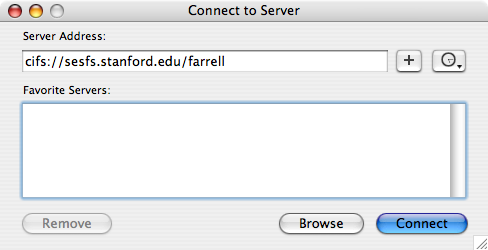
After typing the share address, click on the Connect button. Assuming you have properly logged into kerberos, you will see the Connecting To Server window for a few seconds, as shown in this screenshot:
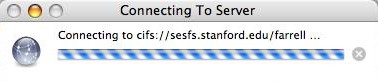
If the Mac prompts you for a username and password for sesfs.stanford.edu instead of showing the Connecting To Server window, that means you are not logged into kerberos. Nothing you type in this username and password prompt will be accepted by sesfs.stanford.edu when connecting from these older Mac OS X verions 10.3 and 10.4. Login to kerberos and then try to connect again.
When the connection is finished, the file share shows up on the desktop with a network disk volume icon, and a separate Finder window generally opens to show its contents. You treat this network disk volume as if it were directly attached to your Mac.
When you are done working with the share, you can disconnect by dragging the share's network disk icon to the Trash, or by right-clicking on the icon (or holding the Control key while clicking with a single button mouse) and selecting Eject from the contextual menu that appears. You will also disconnect automatically if you logout from your Mac or shut it down.