Last revision July 11, 2013
You need to login to kerberos first with your SUNet ID and password before you can connect from Mac OS X 10.4 to the School of Earth Sciences File Server cluster, sesfs.stanford.edu.
Instructions on this page are only for Mac OS X version 10.4.11. They were last tested in 2010 and are not guaranteed to work! These instructions may work for versions of 10.4 prior to 10.4.11. Another page gives instructions for kerberos logins from Mac OS X 10.3.9.
You must install the Kerberos for Macintosh Configuration Tool software package from the Essential Stanford Software web site to make the correct kerberos settings on your computer.
If you want to use the GUI interface to login to kerberos, you must also install the Stanford Desktop Tools software package from the Essential Stanford Software web site to get the Stanford Kerberos Login application.
If you can't find Stanford Kerberos Login on your computer or get it to work, you can run a command from the built-in Terminal application. That option will be described second.
Other programs on your computer, such as your email client, may also be configured to use kerberos authentication. If you have already entered your SUNet ID and password today in the Authenticate to Kerberos window, your authentication should be good for at least 24 hours and you can skip this step. In that case, return to the instructions for connecting to file shares on sesfs.stanford.edu.
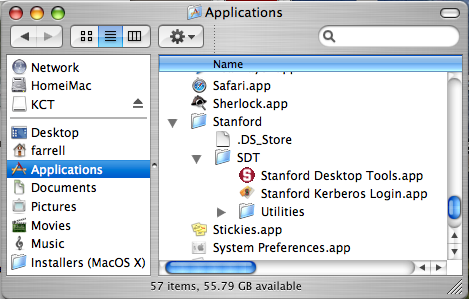
Find Stanford Kerberos Login and open it. The screenshot below shows the typical location in the Applications folder.
Stanford Kerberos Login will put up this login prompt window:
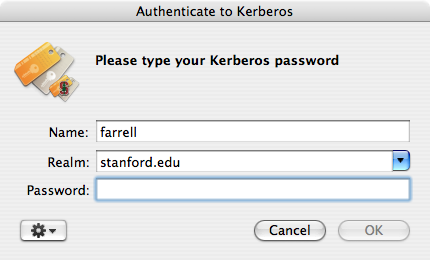
If this window appears, but the Name:, Realm:, and Password: fields are not visible, click anywhere in the window and they will be revealed.
Make sure the Realm: field says stanford.edu. The Name: field will be pre-filled with your account name from the Mac. Change it if necessary to be your SUNet ID name, and then type your SUNet ID password in the Password: field. Click on the OK button to submit your login.
If you typed your name or password incorrectly, you will get a "Kerberos Login Failed" message. Try again. If you login correctly the login window will simply disappear with no further messages.
If you logged into kerberos successfully, return to the instructions for connecting to file shares on sesfs.stanford.edu. If not, try the instructions below for kerberos login using the Terminal application.
This method uses the kerberos programs that are built-in to Mac OS X 10.3 and later versions. However, your computer must have the correct kerberos configuration. That is accomplished by installing the Kerberos for Macintosh Configuration Tool software package from the Essential Stanford Software web site.
If you logged into kerberos successfully, return to the instructions for connecting to file shares on sesfs.stanford.edu.